
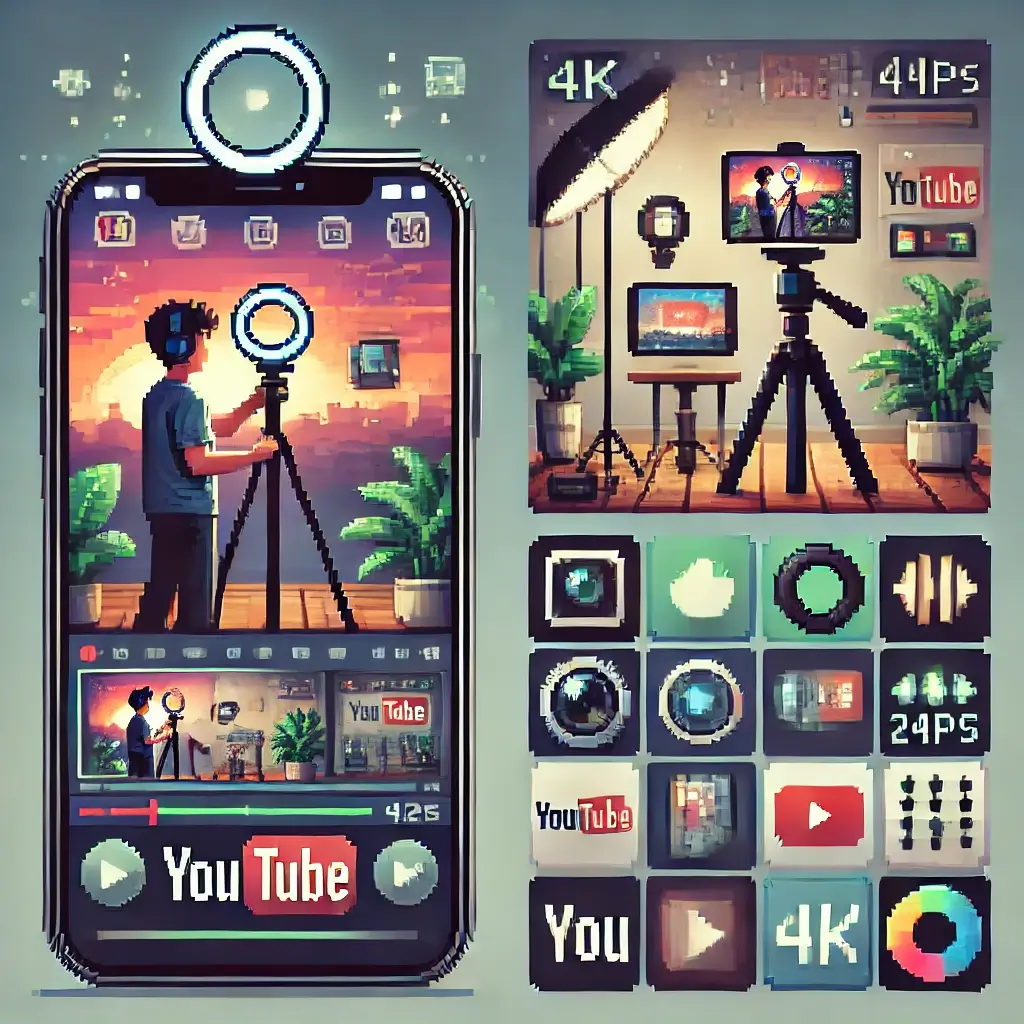
Hey there, aspiring YouTube creator! Are you tired of feeling like you need a thousand-dollar camera to start your channel? What if I told you that the key to unlocking your creative potential is already in your pocket?
That’s right, your smartphone isn’t just for doomscrolling and sending texts. It’s a powerful filmmaking tool, capable of producing stunning, high-quality content that can compete with the pros.
I get it. The world of videography can feel overwhelming. All the jargon—aperture, ISO, frame rates—can make you want to throw in the towel before you even begin.
But let’s be real. The best camera is the one you have with you. And for most of us, that’s our phone.
I’ve been on this journey myself. I started my YouTube channel with nothing but my old iPhone 7, a cheap tripod, and a dream. I made so many mistakes along the way, but I also learned the secrets to making mobile videography work.
Now, I’m here to share those secrets with you. I’m not going to give you a bunch of academic theory. This is about real, practical, and actionable advice that you can use today to start creating killer content.
So, let’s dive into the ultimate guide to smartphone videography for YouTube content creators. Are you ready to level up your game?
7 Shocking Pro Tips to Master Smartphone Videography for YouTube
You might be wondering, “Why should I bother with a smartphone when everyone else has a DSLR?” The answer is simple: convenience, accessibility, and the insane quality of modern phone cameras.
Seriously, the latest models from Apple, Samsung, and Google can shoot in 4K resolution, offer incredible dynamic range, and even have cinematic modes that rival professional gear. It’s truly a game-changer.
—Table of Contents
1. Lighting is Your Best Friend: The #1 Secret to Pro-Level Smartphone Videography
Think of light as the most important ingredient in your video recipe. No matter how good your camera is, bad lighting will make your footage look grainy, dull, and unprofessional.
Natural light is your best friend. Shoot near a window during the day, facing the light source. This will give you a soft, flattering glow that makes you look amazing. Avoid shooting with a bright window behind you—this will make you a dark silhouette, and trust me, nobody wants to watch a ghost give advice!
If natural light isn’t an option, invest in a simple ring light or an LED panel. You can find great, affordable options on Amazon or B&H Photo Video.
I remember my first YouTube video. The lighting was terrible. I shot it in my dimly lit living room, and I looked like I was broadcasting from a cave. A friend of mine, who’s a professional videographer, gave me a simple piece of advice: “You can fix a lot of things in post-production, but you can’t fix bad light.” That stuck with me.
—2. Don’t Skip on Audio: The Unsung Hero of High-Quality YouTube Content
People will forgive a slightly shaky video, but they will click away instantly if the audio is bad. It’s the silent killer of a YouTube channel.
Your phone’s built-in microphone is decent, but it picks up a lot of background noise and echoes. The solution? An external microphone.
You have a few great options here:
- Lavalier Mic: A small clip-on mic that you can attach to your shirt. It’s perfect for tutorials, interviews, and vlogging. The Rode SmartLav+ and Movo VXR10 are excellent choices.
- Shotgun Mic: A directional mic that focuses on what’s in front of it and rejects sounds from the sides. The Rode VideoMic Me-L is a popular choice for mobile users.
A good mic will make your voice sound clear, crisp, and professional. It’s the single most impactful gear upgrade you can make.
—3. Stabilize Your Shots: Say Goodbye to Shaky Footage with a Tripod
A shaky video looks amateurish and can even make your audience feel seasick. Luckily, this is an easy fix. All you need is a tripod and a phone holder.
A sturdy tripod ensures your shots are steady and professional. It also frees up your hands so you can focus on your on-camera performance. I highly recommend a flexible tripod like the Joby GorillaPod, which you can wrap around a pole or stand on uneven surfaces. It’s an absolute game-changer for filming outdoors or in unconventional spaces.
Remember that time you tried to film a product review while holding your phone? Your hand got tired, the shot started shaking, and the final video looked like it was filmed during a minor earthquake. Yeah, a tripod fixes that.
—4. Get the Right Frame Rate and Resolution: Your Secret to a Cinematic Look
This is where things can get a little technical, but I promise it’s simple once you understand the basics.
Frame Rate (fps): This is the number of individual still images that make up one second of video.
- 24 fps: This is the classic cinematic frame rate. It gives your video a dreamy, film-like motion blur. It’s perfect for storytelling and vlogs.
- 30 fps: The standard for broadcast television. It’s great for tutorials, explainers, and anything where you want a crisp, clear look.
- 60 fps: Ideal for fast-moving subjects, like sports or action shots. It allows you to slow down your footage in post-production for smooth, beautiful slow-motion effects.
Resolution: The size of your video.
- 1080p (Full HD): Perfect for YouTube. It’s a great balance between quality and file size.
- 4K (Ultra HD): Four times the resolution of 1080p. It gives you incredible detail and allows you to crop and zoom in on your footage without losing quality. It’s a must-have for professional-looking videos.
The key here is to shoot at the highest quality your phone allows and then compress the file for upload. This gives you maximum flexibility in editing.
—5. Edit on Your Phone: The Magic of Mobile Post-Production
You don’t need a fancy computer with expensive software to edit your videos. There are some incredible video editing apps available for both iOS and Android.
My go-to apps are:
- CapCut: Free and incredibly powerful. It has all the basic tools you need and some cool effects, too.
- VN Video Editor: Another fantastic free option. It has a clean, user-friendly interface and no watermarks.
- LumaFusion: The pro-level choice. It’s a paid app, but it’s packed with features that rival desktop software. If you’re serious about mobile editing, this is the one to get.
Learn to use these apps to trim your clips, add music, and create dynamic transitions. A good edit can turn a decent video into a masterpiece.
—6. The Ultimate Infographic for Smartphone Videography
Sometimes, a visual guide says more than a thousand words. I put together this little infographic to help you remember the key concepts. Use it as your cheat sheet!
Smartphone Videography Checklist
Gear Essentials
- ✅ Smartphone
- ✅ External Mic
- ✅ Tripod
- ✅ Phone Holder
- ✅ Portable Light
Shooting Tips
- ✅ Shoot Horizontally
- ✅ Use Good Lighting
- ✅ Lock Focus & Exposure
- ✅ Clean Your Lens
- ✅ Use a Tripod
Settings to Check
- ✅ Resolution: 4K or 1080p
- ✅ Frame Rate: 24, 30, or 60 fps
- ✅ Grid Lines On
- ✅ HDR Off
- ✅ Airplane Mode On
Frequently Asked Questions (FAQ)
I know you’ve got questions, so let’s tackle a few of the most common ones I hear from new creators.
Q1: Do I really need an external microphone? Can’t I just use my phone’s built-in one?
A: I get this question all the time! While your phone’s mic is fine for a quick, casual clip, it’s not going to cut it for a YouTube video you want people to watch. Think of it this way: your brain is incredibly good at forgiving mediocre visuals, but it’s much less forgiving of bad audio. A fuzzy, distorted, or echoey voice can be a huge turn-off. An external mic makes your voice sound clear and professional, which instantly builds trust and keeps your audience engaged. It’s the single best investment you can make, hands down.
Q2: My footage looks shaky even with a tripod. What am I doing wrong?
A: It’s likely not the tripod, but your technique! If you’re tapping the screen to start and stop recording, you’re causing a tiny bit of camera shake. Here are a couple of pro tricks: use a remote shutter button (you can find these for cheap) or set a timer on your camera app. This way, you don’t have to touch the phone at all during the shot. Also, make sure your tripod is on a stable, level surface. Sometimes a small bump or uneven ground can introduce a subtle wobble.
Q3: What’s the best time of day to shoot outside?
A: This is a golden rule of photography and videography: shoot during the “golden hour.” This is the hour after sunrise and the hour before sunset. The light is soft, warm, and incredibly flattering. It avoids the harsh shadows and washed-out look you get from the midday sun. If you can’t shoot during the golden hour, look for a shaded area to film in. The diffused light will make your video look much better.
Q4: Should I shoot in portrait or landscape mode for YouTube?
A: Always shoot in landscape mode (horizontally) for YouTube! YouTube is designed for a widescreen viewing experience. Shooting in portrait mode will result in black bars on the sides of your video, which looks unprofessional and takes up less screen space for your audience. The only exception is if you’re specifically creating content for YouTube Shorts, which is designed for vertical videos.
—I know this all might sound like a lot, but I promise it’s not. It’s about taking one step at a time. Start with great lighting. Then, upgrade your audio. Then, get a tripod. Soon, you’ll be producing videos that look and sound like they were filmed by a professional crew.
Remember, the goal isn’t perfection, it’s progress. Your first video will probably be a little rough around the edges, and that’s okay. My first video was a total mess, but it was the start of something awesome.
So, get out there and start creating. You have everything you need right in your hand.
I hope this guide helps you on your journey. Now, go create something amazing!
Click Here for Pro-Grade Gear! Find the Perfect Mic for Your Needs Top-Rated Smartphone Cameras of 2025Don’t let gear hold you back! Start with what you have, and you’ll be surprised at what you can create.
smartphone videography, youtube content creation, mobile filmmaking, video production, seo for creators
🔗 Don’t Get Hacked Abroad: 7 Best Mobile Security Tips Posted 2025-08-21 🔗 Coastal Grandma Design Posted 2025-08-21 🔗 Love Bombed Grand Gestures Posted 2025-08-20 🔗 Scuba Diving & Marine Conservation Posted 2025-08-20 🔗 Space Tourism Posted 2025-08-20 🔗 Satsuma Vases Posted N/A